How to Change Your Airdrop Name on iPhone, iPad, and Mac
Changing the name that appears when using Airdrop on Apple devices can be crucial for organizing and identifying devices, especially in environments with multiple Apple products. This guide outlines the steps to modify the Airdrop name on iPhone, iPad, and Mac.
Steps for iPhone and iPad
Open Settings: Navigate to the Settings app on your device.
Select General: Scroll down and tap on the "General" option.
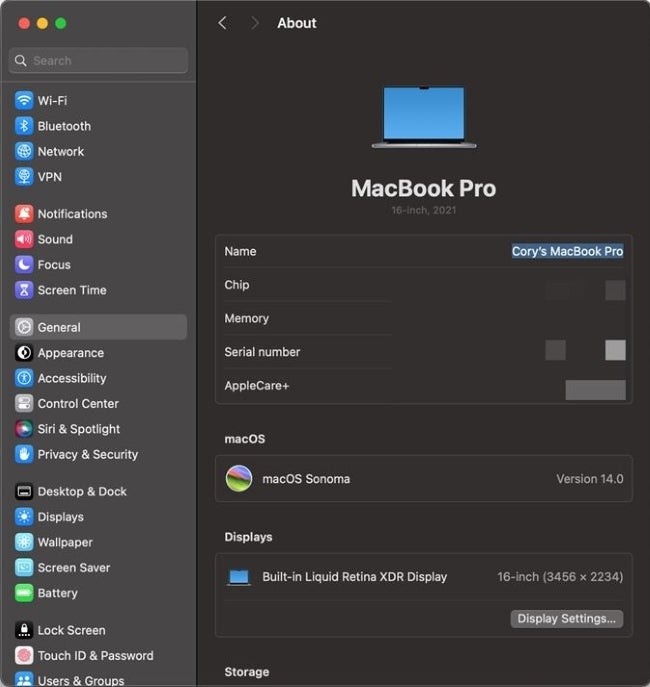
Access About: Find and select "About" from the list.
Edit Name: Tap on the "Name" field at the top and enter your desired Airdrop name.
Steps for Mac
System Preferences: Open System Preferences from the Apple menu.
Sharing Options: Click on the "Sharing" icon.
Computer Name: In the "Computer Name" field, type in the new name you wish to use for Airdrop.
Updating the Airdrop name can help streamline the process of identifying devices, making file sharing faster and more efficient.